
API docs Integrations
MCP (for Claude or ChatGPT)
Ship from the chat: compare rates, book, get labels, track and estimate duties with Claude or ChatGPT.
With our MCP server you connect your ParcelParcel account to your AI assistant. Then you just ask, in plain language: "What does it cost to send this box to New York?", "Book the cheapest one", "Where is my shipment to Paris?" The assistant uses the same prices, carriers and shipments as your MyParcelParcel account, and asks you to confirm before anything is booked.
You don't need to write code or create API keys: you log in with your ParcelParcel account once.
Note: the MCP server is in beta. If something doesn't work as expected, let us know via support.
Server URL
You only need one thing, this server URL:
ParcelParcel
LetMeShip Next
What the assistant can do
When you connect, the assistant gets these tools. You don't call them yourself: the assistant picks the right one from what you ask.
| Tool | What it does | Changes something? |
|---|---|---|
compare_shipping_options | Prices, carriers and transit times for a route and your parcels. Each option has a productId to book exactly that one. | No |
create_shipment_draft | Creates a draft with addresses, parcels and contents, and returns its id and price. Nothing is booked yet. | Draft only |
book_shipment | Books a draft at the carrier and returns a link to the PDF label. | Yes, with costs |
get_shipment_labels | A fresh link to the PDF label of a shipment. | No |
track_shipment | Tracking status and events, by tracking number. | No |
find_shipments | Searches your shipments by reference, tracking number, address, status, carrier, countries or booking date. | No |
cancel_shipment | Cancels a shipment, as long as the carrier hasn't picked it up yet. | Yes, permanent |
estimate_duties_taxes | Estimates import duties and taxes for goods outside the EU. | No |
whoami | Shows which ParcelParcel account is connected. | No |
Use cases
Compare rates and transit times
You: What does it cost to send a box of 8 kg, 65 × 25 × 21 cm, from Naarden to Los Angeles? And which one is fastest?
The assistant uses compare_shipping_options and shows the options with price (excluding VAT) and transit time, cheapest first. Mention a zipcode or city for the most accurate price: without them we use the capital of the country. Want insurance? Say so and give the value of the goods; it's included in the price.
Other things you can ask:
- "Compare DHL and FedEx for a pallet of 120 kg to Antwerp, delivered to a business."
- "What's the cheapest way to send documents to Tokyo?"
Book a shipment
You: Book the FedEx Economy one. Sender is me, John Doe, +31 6 12345678, [email protected], Energiestraat 14E, 1411 AT Naarden. The recipient is Acme Inc., Jane Smith, +1 212 555 0100, [email protected], 350 5th Ave, New York 10118. Contents: 10 cotton T-shirts at €15 each, made in Portugal, HS code 61091000.
Booking always takes two steps:
- Draft.
create_shipment_draftmakes a draft with your chosen option and shows the price. Is something missing, such as a phone number of the recipient? The assistant asks you for it. It never makes up names, phone numbers or email addresses. - Book. After you confirm,
book_shipmentbooks it at the carrier and gives you a link to the PDF label. The link works for about an hour; ask "Give me the label again" for a new one.
You can also stop after step 1: the draft stays in API shipments in MyParcelParcel, where you can check it and book it yourself.
Add-ons. You can ask for extras: insurance, scheduled_pickup (the carrier picks it up on the date you give), and for pallets truck and hydraulic. Paid add-ons, and fields we fill in for you (such as an importer address that we copy from the destination), are shown to you before booking and only go through when you confirm them.
Ship outside the EU (customs)
You: I want to send 3 spare parts to Switzerland. What do you need from me for customs?
For shipments outside the EU, every item needs a description, an HS code, the country where it was made, a quantity and a price per unit. Depending on your account, the assistant also asks for incoterms (DAP or DDP) and an importer address. The customs value is the total of the items. Is the shipment a gift, sample or return instead of a sale? Tell the assistant; otherwise the reason for export is commercial.
Estimate duties and taxes
You: What will my customer in the UK pay in duties and VAT for 9 cylinder heads of €800 each, HS code 84099900?
estimate_duties_taxes returns the estimated duties and VAT per line and the total. It's an estimate: what customs actually charges can be different.
Track a shipment
You: Where is shipment 6516516533?
track_shipment shows the status (info_received, in_transit, exception or delivered) and every scan with time and place. Don't have the tracking number at hand? Ask "Where is my shipment to Jane Smith?": the assistant finds it first with find_shipments.
Find shipments
You: Which shipments did I send to Germany last month, and which of them aren't delivered yet?
find_shipments searches by reference, tracking number, address, status, carrier, origin and destination country and booking date, 25 per page (up to 100). Handy for questions like "Show my DHL shipments of this week" or "Find order #123126".
Get a label again
You: I lost the label of my shipment to Paris, can you get it again?
The assistant finds the shipment and uses get_shipment_labels for a new link to the PDF.
Cancel a shipment
You: Cancel shipment 1588448, the customer changed the order.
cancel_shipment cancels it, as long as the carrier hasn't picked up or scanned the parcel. This is permanent: the shipment can't be used again. If the parcel is already on its way, the assistant tells you it can no longer be cancelled.
You stay in control
- Nothing is booked without you. Booking is always a separate step after a draft, and paid add-ons need your confirmation.
- No guessing. Contact details, phone numbers and email addresses come from you; the assistant asks when something is missing and doesn't fill in placeholders.
- No double bookings. If a booking is sent twice (for example after a time-out), the second attempt returns the first booking instead of booking again.
- Read or write. When you connect, you approve access to your account. Booking, creating drafts and cancelling need write access (
mcp:write); everything else only reads. - Real bookings. The MCP has no sandbox mode: a booked shipment is booked at the carrier and charged to your account. Want to try things out first? Stop at the draft step, or use the API with your sandbox key.
Per-tool permissions in Claude
In Claude you can set each tool to Always allow, Needs approval or Never allow. Set book_shipment and cancel_shipment to Needs approval, so Claude always asks before it books or cancels.
Connect in ChatGPT
Important: you first need to turn on "Developer mode" in ChatGPT, otherwise you can't add a custom connector.
- Click your workspace (bottom left) → Settings.
- Go to Security and login.
- Turn on the Developer mode toggle. (ChatGPT shows an "elevated risk" warning; that's normal for custom connectors.)
- Then go to Plugins / Connectors (or open directly: https://chatgpt.com/plugins#settings/Connectors?create-connector=true).
- Click New plugin / Add connector.
- Fill in:
- Name: ParcelParcel or LetMeShip Next
- Connection: Server URL
- URL:
https://services.parcelparcel.com/mcp(orhttps://services.letmeship.com/mcpfor LetMeShip Next) - Authentication: OAuth
- Tick "I understand and want to continue" and click Create.
- Click Connect → Sign in with ParcelParcel/LetMeShip Next and log in with your ParcelParcel/LetMeShip Next account.
- Click Approve to grant access. Done!
Now try asking, for example: "Where is my latest shipment?"
Connect in Claude
Who can connect?
- Individual accounts (Pro/Max): you can add and authorise the connector yourself.
- Team/Enterprise: an Organisation Owner must add the connector organisation-wide first; after that, everyone can connect.
Steps:
- Open Claude and click Settings.
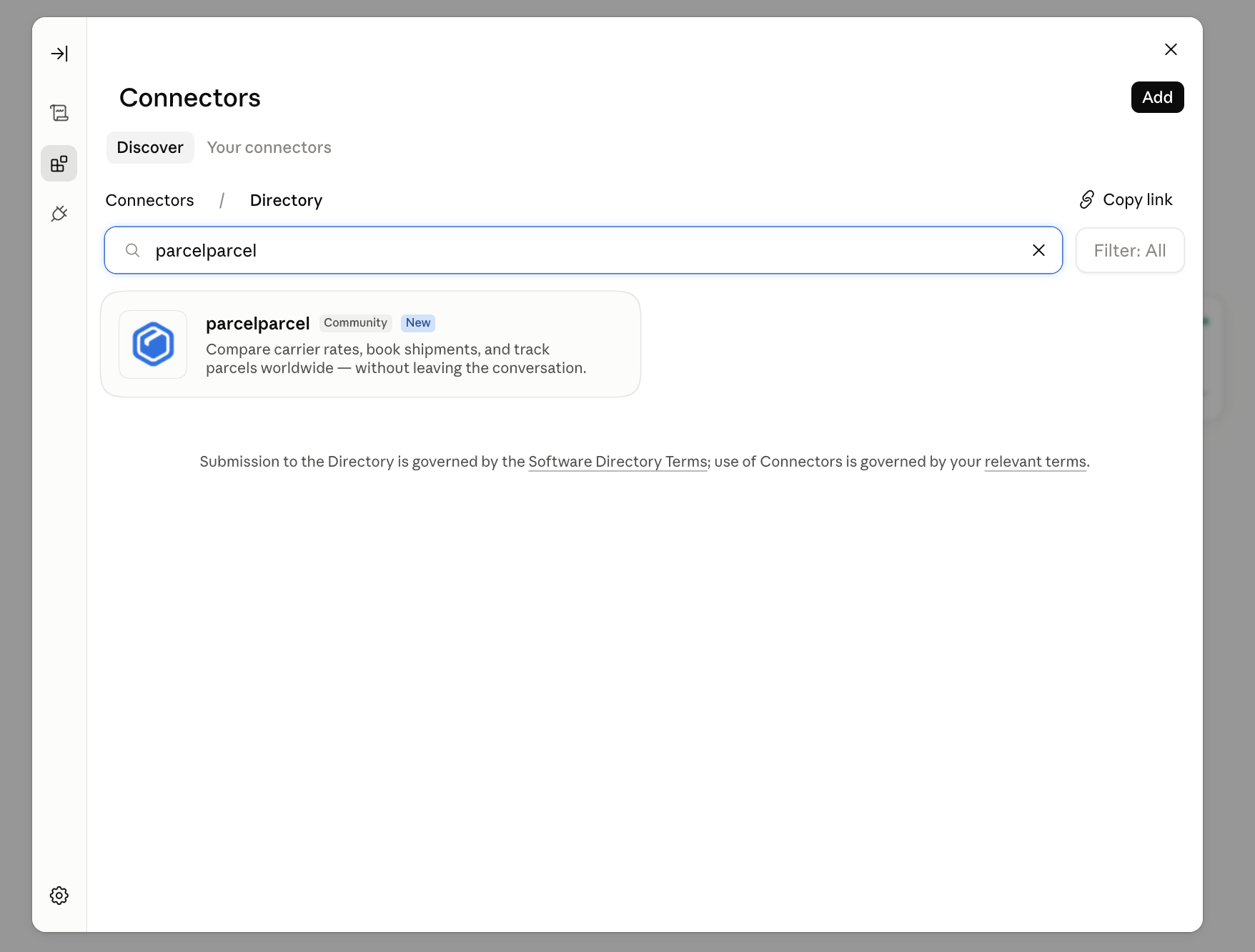
- Go to Connectors → Discover.
- Search for "ParcelParcel" and click Add on the ParcelParcel connector.
- Log in with your ParcelParcel account and approve access.
- Done! Try asking, for example: "Compare shipping options to Germany for a 2 kg parcel."
Fallback: manual setup (if ParcelParcel doesn't show up in Discover)
- Open Claude and click Settings.
- Go to Connectors → Add custom connector.
- Paste
https://services.parcelparcel.com/mcpand confirm. - Log in with your ParcelParcel account and approve access.
Connect in Claude Code
Add the server from the terminal:
claude mcp add --transport http parcelparcel https://services.parcelparcel.com/mcpTo make it available across all your projects (instead of just the current one), add --scope user:
claude mcp add --transport http parcelparcel https://services.parcelparcel.com/mcp --scope userRun /mcp inside a Claude Code session to log in and check that the parcelparcel server is connected.
Questions, feedback, or something not working? Email [email protected].